How to Access Torzon Market
Complete step-by-step guide to safely accessing Torzon Market using Tor Browser, setting up PGP encryption, and creating a secure account.
Before You Begin: Essential Prerequisites
Accessing Torzon Market safely requires proper preparation. Unlike regular websites, darknet marketplaces operate on the Tor network and require specific tools and knowledge to navigate securely. Taking time to set up your environment correctly will protect your identity and funds throughout your marketplace experience.
This guide assumes you're starting from scratch with no prior darknet experience. We'll walk through every step from downloading your first security tool to making your first verified login. Even if you have some experience, reviewing these fundamentals ensures you haven't missed any critical security steps.
Security First
Never skip security steps to save time. Proper operational security is non-negotiable when accessing darknet markets. The few extra minutes spent on security setup can protect you from catastrophic consequences of exposure.
What You'll Need
- Tor Browser: The official browser for accessing .onion sites (free)
- PGP Software: For encrypting sensitive communications (free)
- Cryptocurrency: Bitcoin or Monero for transactions
- Verified Links: Authentic Torzon .onion addresses from our mirrors page
- Time and Patience: Rushing leads to security mistakes
Step 1: Download and Install Tor Browser
Tor Browser is the gateway to the darknet. It's a modified version of Firefox that routes your internet traffic through the Tor network, hiding your IP address and location from the websites you visit. Without Tor Browser, you cannot access .onion websites like Torzon Market.
Downloading Tor Browser Safely
Always download Tor Browser from the official source to avoid compromised versions:
- Visit https://www.torproject.org using your regular browser
- Click "Download Tor Browser"
- Select your operating system (Windows, macOS, or Linux)
- Wait for the download to complete
- Verify the download signature if you want additional security (optional but recommended)
Verify Your Download
The Tor Project provides signature files to verify download authenticity. While optional, this verification ensures your download hasn't been tampered with during transfer. Instructions are available on the Tor Project website.
Installation Process
Windows
- Run the downloaded .exe installer
- Choose your installation location (can be portable drive)
- Click Install and wait for completion
- Launch Tor Browser from the Start menu or installation folder
macOS
- Open the downloaded .dmg file
- Drag Tor Browser to your Applications folder
- If prompted about unsigned software, right-click and select "Open"
- Launch from Applications
Linux
- Extract the downloaded tar.xz archive
- Navigate to the extracted folder
- Run start-tor-browser.desktop
First Launch and Connection
When you first launch Tor Browser, you'll see a connection screen:
- Click "Connect" to join the Tor network
- Wait for the connection to establish (may take 30 seconds to a few minutes)
- Once connected, Tor Browser opens to a default page
- You're now ready to access .onion sites
If you're in a country that censors Tor, click "Configure" instead of "Connect" to set up bridges that help bypass censorship. The Tor Project provides built-in bridge options for various censorship scenarios.
Step 2: Set Up PGP Encryption
PGP (Pretty Good Privacy) encryption is essential for secure communication on Torzon. When you send your shipping address to a vendor or receive sensitive information, PGP encryption ensures only the intended recipient can read the message. Without PGP, your communications could potentially be read by anyone who gains access to marketplace servers.
Understanding PGP Basics
PGP uses a pair of mathematically related keys:
- Public Key: You share this freely. Others use it to encrypt messages only you can read.
- Private Key: You keep this secret. It's the only key that can decrypt messages encrypted with your public key.
Choosing PGP Software
Several reputable PGP implementations are available:
For Windows: Gpg4win
- Download from https://www.gpg4win.org
- Run the installer and select "Kleopatra" component
- Complete installation
- Launch Kleopatra to manage your keys
For macOS: GPG Suite
- Download from https://gpgtools.org
- Open the .dmg and run the installer
- GPG Keychain application will be installed
- Launch GPG Keychain to manage keys
For Linux: GnuPG
Most Linux distributions include GnuPG by default. You can use the command line or install a GUI like Seahorse (GNOME) or KGpg (KDE).
Creating Your Key Pair
- Open your PGP software (Kleopatra, GPG Keychain, etc.)
- Select "New Key Pair" or "Create New Key"
- Choose RSA with 4096-bit key length for maximum security
- Enter a pseudonymous name (not your real name)
- Enter an email (can be fake, like torzon@example.onion)
- Create a strong passphrase to protect your private key
- Wait for key generation to complete
Protect Your Private Key
Your private key is like a master password. Never share it, never upload it anywhere, and always back it up securely. If someone obtains your private key and passphrase, they can read all your encrypted communications and impersonate you.
Exporting Your Public Key
To receive encrypted messages, you'll need to share your public key on Torzon:
- In your PGP software, select your key
- Choose "Export" or "Export Public Key"
- Save as a text file or copy to clipboard
- You'll paste this on your Torzon profile
Step 3: Obtain Cryptocurrency
Torzon accepts Bitcoin (BTC) and Monero (XMR) for transactions. You'll need to acquire cryptocurrency before you can make purchases. The method you choose depends on your privacy requirements and convenience preferences.
Bitcoin (BTC)
Bitcoin is the most widely accepted cryptocurrency but has a transparent blockchain where transactions can potentially be traced. For privacy, consider using mixing services or converting to Monero before depositing to marketplace wallets.
Where to Buy Bitcoin
- Centralized Exchanges: Coinbase, Kraken, Binance (require ID verification)
- Peer-to-Peer Platforms: Bisq, HodlHodl (less ID requirements)
- Bitcoin ATMs: Cash purchases with varying ID requirements
Monero (XMR)
Monero is the recommended cryptocurrency for privacy-conscious users. Its blockchain is private by default, making transactions untraceable. Many experienced darknet users prefer Monero exclusively for its superior anonymity.
Where to Buy Monero
- Exchanges: Kraken, KuCoin (with ID)
- Swap Services: Exchange BTC to XMR through services like ChangeNow or TradeOgre
- LocalMonero: Peer-to-peer Monero marketplace
Monero Recommended
For maximum privacy, purchase Monero directly or convert Bitcoin to Monero before depositing to Torzon. Monero's built-in privacy features provide significantly better anonymity than Bitcoin, even with mixing services.
Step 4: Access Torzon Market
With Tor Browser installed and running, you're ready to access Torzon Market. This step requires careful attention to link verification to avoid phishing sites that steal credentials and funds.
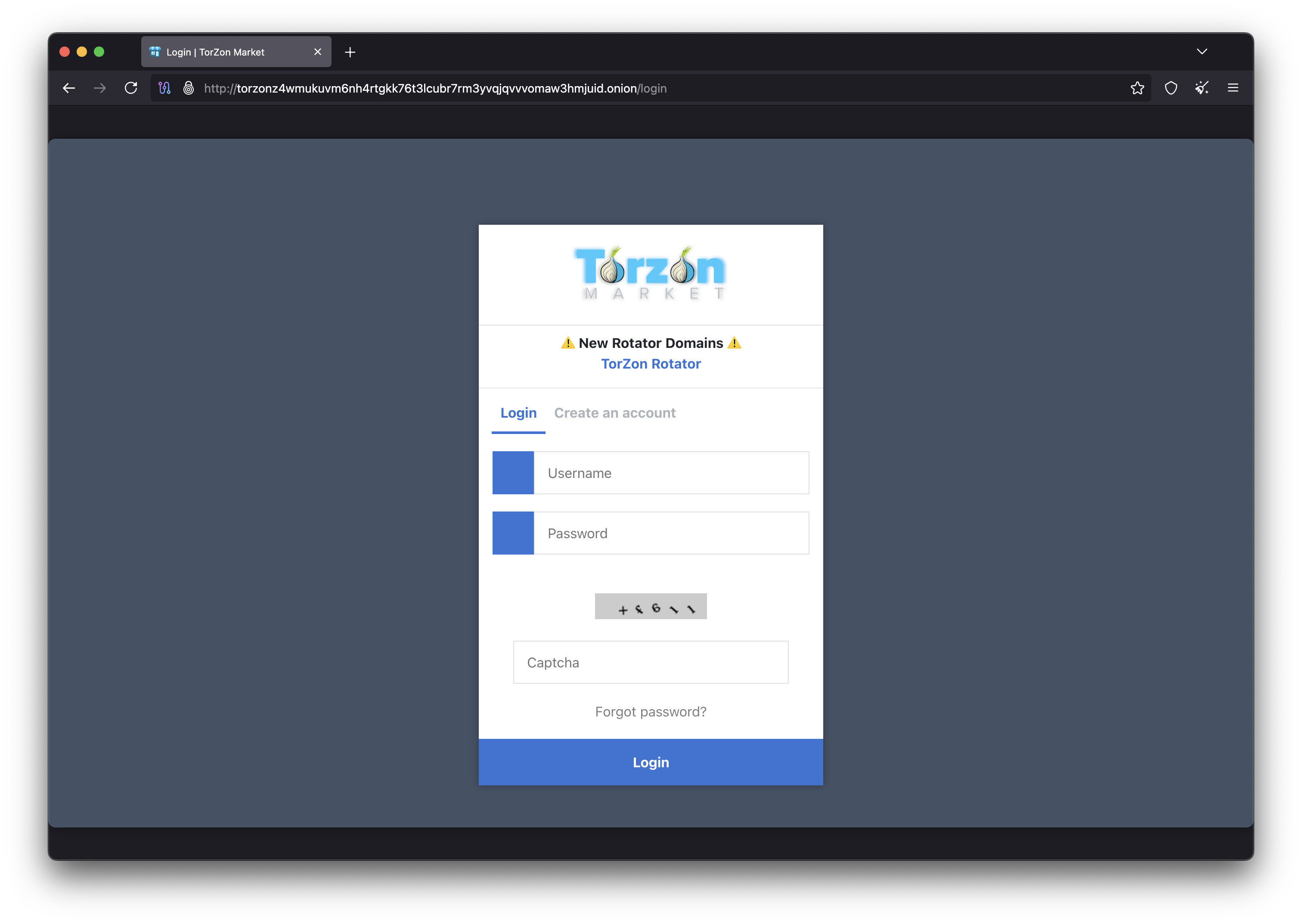
Getting Verified Links
The most critical security step is ensuring you use authentic Torzon links. Phishing sites are designed to look identical to the real marketplace but steal your login credentials and funds.
- Visit our verified mirrors page
- Copy one of the listed .onion addresses
- Paste the address directly into Tor Browser's address bar
- Press Enter to navigate to Torzon
Link Safety Rules
- Never use Torzon links from forums, social media, or search engines
- Never click hyperlinks to Torzon - always copy and paste addresses manually
- Bookmark the working address and always use your bookmark
- Verify the .onion address character-by-character
Navigating Connection Issues
Sometimes .onion sites may be temporarily unavailable due to network issues or DDoS attacks. If one mirror doesn't work:
- Wait a few minutes and try again
- Try a different mirror from the list
- Restart Tor Browser to get a new circuit
- Check if the Tor network itself is functioning properly
Step 5: Create Your Account
Once you've reached the authentic Torzon site, you can create your account. This process includes setting up your anti-phishing phrase and security preferences that will protect your account going forward.
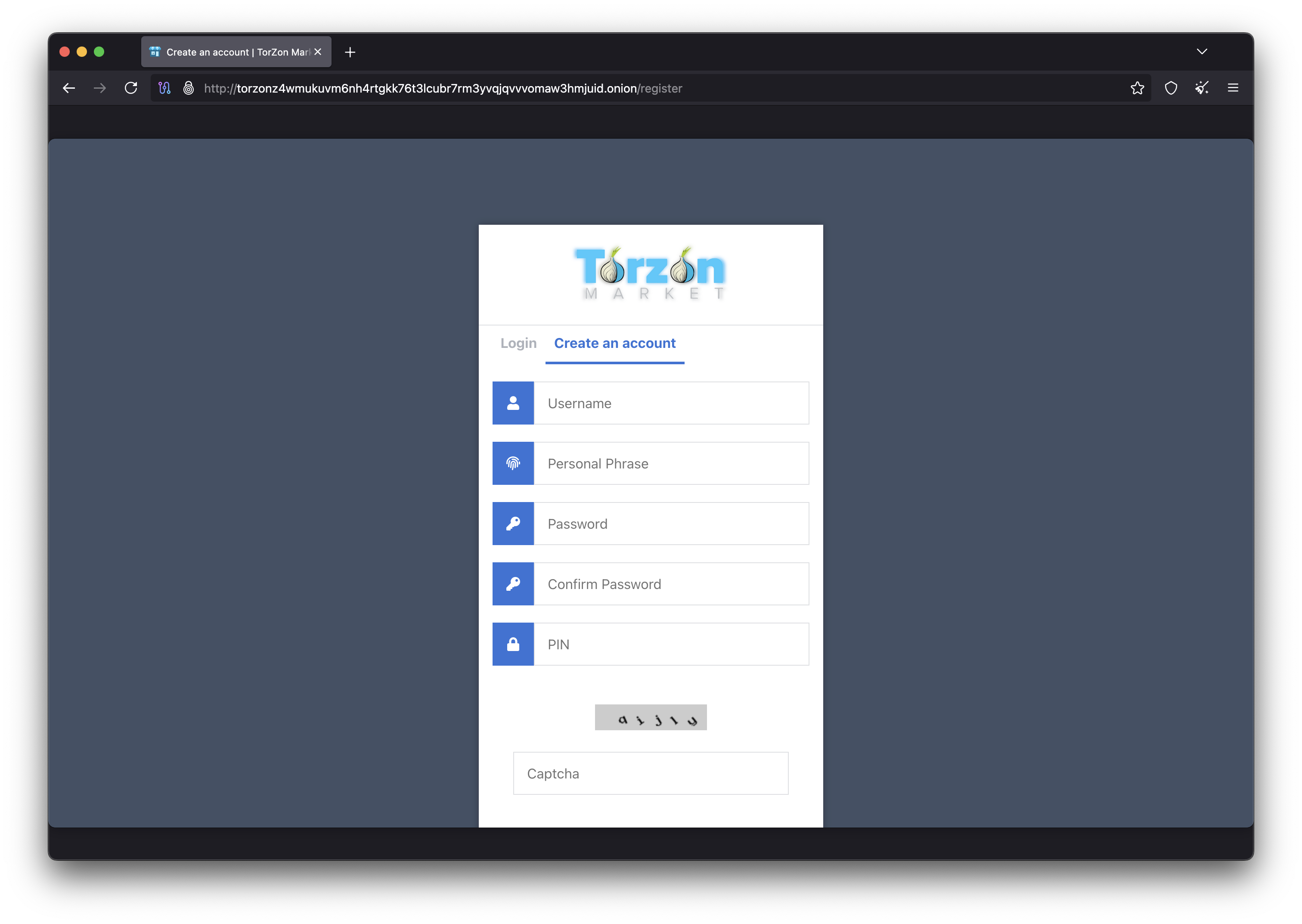
Registration Process
- Click "Register" or "Create Account" on the Torzon homepage
- Choose a unique username (cannot be changed later)
- Create a strong, unique password (16+ characters recommended)
- Set your personal anti-phishing phrase (memorable but not guessable)
- Complete the CAPTCHA verification
- Optionally set up 2FA during registration or later
- Review and accept terms of service
- Submit registration
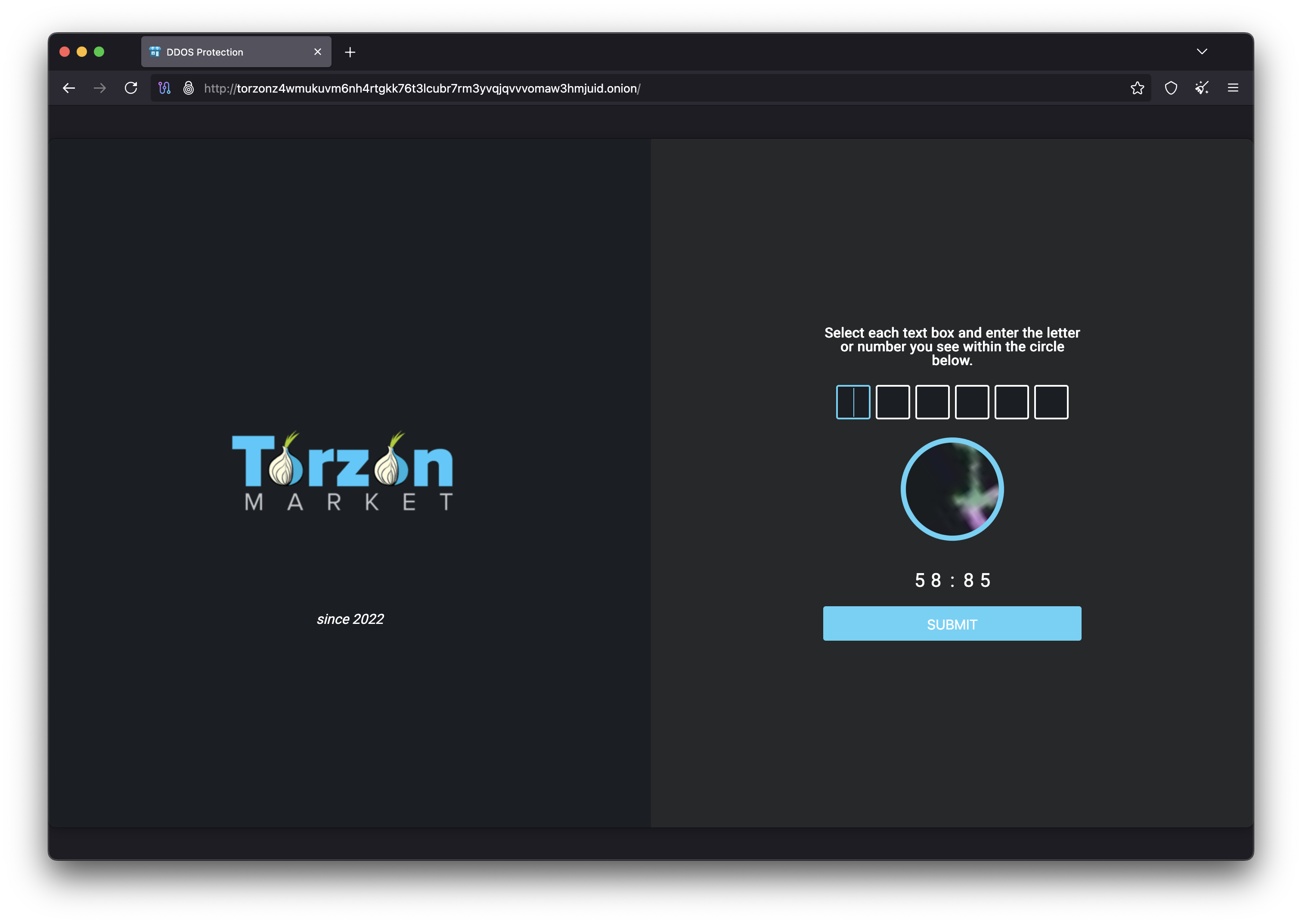
Choosing a Strong Password
Your Torzon password should be:
- At least 16 characters long
- Unique (not used anywhere else)
- A mix of uppercase, lowercase, numbers, and symbols
- Not based on dictionary words or personal information
- Stored in a password manager or memorized (not written down)
Setting Your Anti-Phishing Phrase
Your anti-phishing phrase is displayed on the login page after entering your username. Choose something:
- Memorable to you but not guessable by others
- Not based on public information about you
- Unique to Torzon (don't reuse security phrases)
- Long enough to be distinctive (3-5 words recommended)
Post-Registration Setup
After creating your account, complete these additional security steps:
- Enable 2FA: Set up PGP-based or TOTP two-factor authentication
- Add PGP Key: Upload your public PGP key to your profile
- Review Security Settings: Configure notification and session preferences
- Generate Deposit Address: Get your wallet address for funding
Ongoing Security Verification
Every time you log in to Torzon, follow these verification steps to ensure you're on the authentic site:
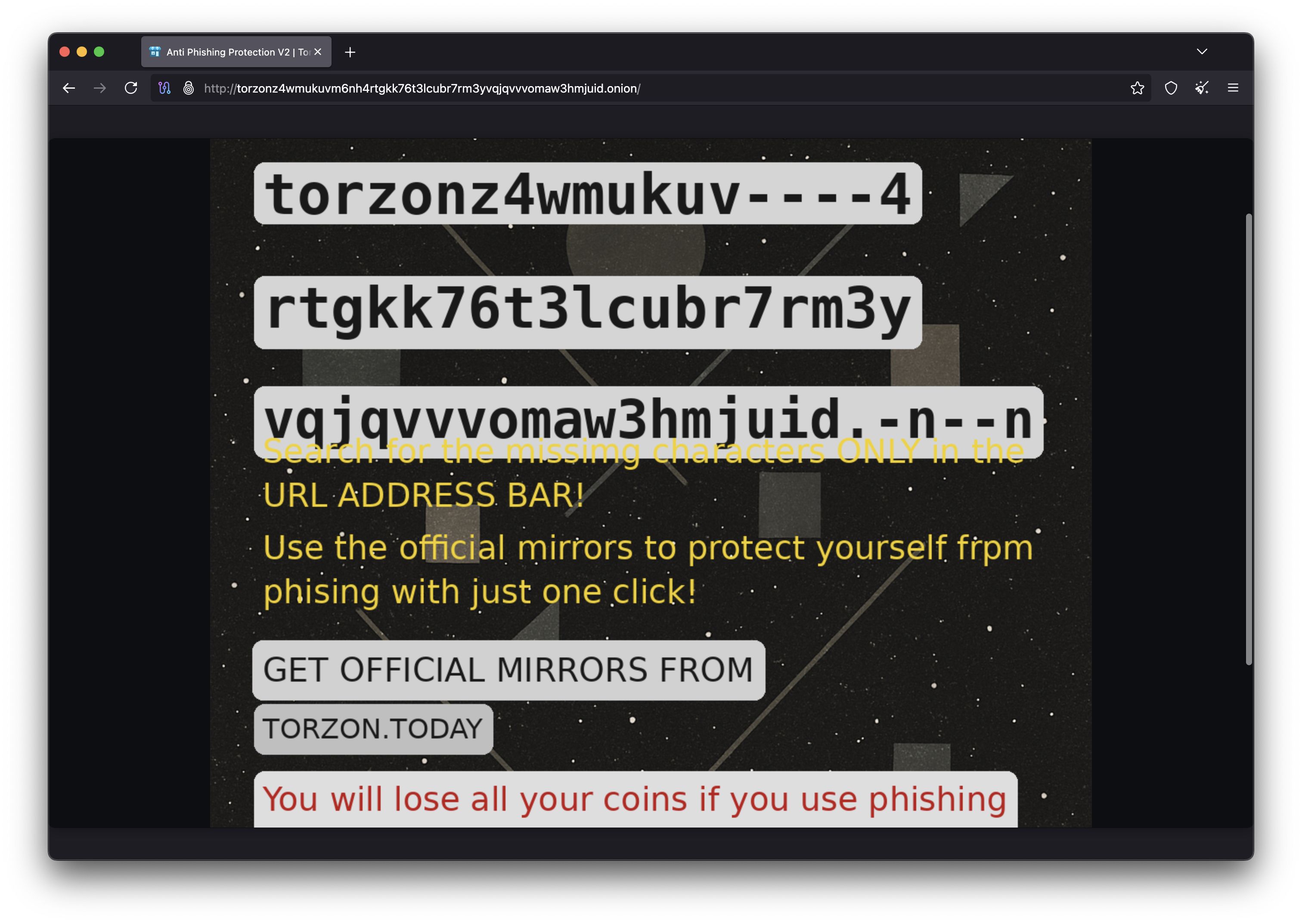
Login Verification Checklist
- Check the .onion address: Verify it matches your bookmarked address exactly
- Enter only username first: Don't enter password until you see your anti-phishing phrase
- Verify anti-phishing phrase: Confirm the displayed phrase matches what you set
- Enter password: Only after phrase verification
- Complete 2FA: Enter your second factor if enabled
- Check last login: After logging in, verify the last login time and location make sense
What If Something Seems Wrong?
- Wrong anti-phishing phrase: You're on a phishing site. Close immediately and don't enter password.
- No phrase displayed: Site may be compromised. Use a different mirror.
- Unexpected last login: Your account may be compromised. Change password and enable 2FA immediately.
- Unusual site appearance: Could be a phishing site. Verify the .onion address carefully.
Access FAQ
Is using Tor Browser illegal?
Tor Browser itself is legal in most countries and is used by journalists, activists, and privacy-conscious individuals worldwide. It's the activities conducted over Tor that may be legal or illegal depending on your jurisdiction. Always understand and comply with laws in your area.
Why is the site loading slowly?
Tor routes your traffic through multiple relays around the world for anonymity, which adds latency. Slow speeds are normal, especially during high-traffic periods. Be patient and avoid refreshing excessively, as this can further slow your connection.
Can I use a VPN with Tor?
Using a VPN with Tor is debated in the security community. In most cases, Tor alone provides sufficient anonymity. Adding a VPN can actually reduce anonymity by creating a fixed entry point. If you use a VPN, understand the implications and use it consistently.
What if I forget my password?
Torzon has limited password recovery options to protect account security. If you've set up PGP verification, you may be able to recover access through the support process. Without recovery methods configured, lost passwords typically mean lost accounts. Always use a password manager.
Setup Tutorial Videos
Visual guides to help you set up secure access to Torzon Market.
Tor Hidden Services Explained
PGP Encryption Tutorial
Linux for Privacy and Security
Ready to Access Torzon?
Now that you understand the process, get verified links and start your secure access to Torzon Market.